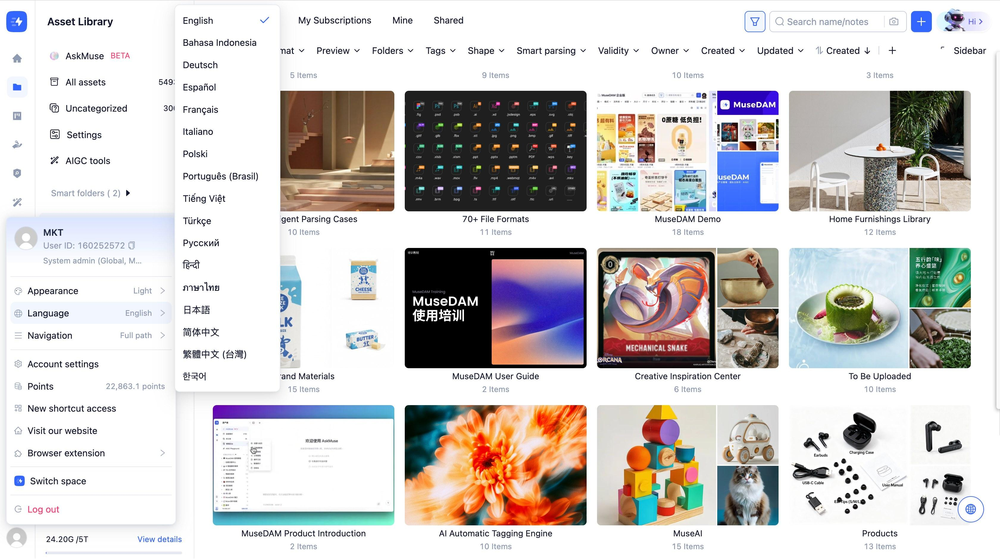
MuseDAM supports 17 interface languages, covering major markets around the world — including Simplified Chinese, Traditional Chinese, English, Japanese, Korean, Indonesian, German, Spanish, French, Italian, Polish, Portuguese, Vietnamese, Turkish, Russian, Hindi, and Thai.
— Team members in different regions can each switch to their preferred language, reducing friction and making day-to-day use more intuitive
Standardizing team language — Admins can set a default language for the workspace to ensure new members see a consistent interface from day one
Personal language preferences — Individual members can adjust their interface language without affecting anyone else on the team
Multilingual asset review (Enterprise) — Use the real-time translation plugin to view asset names and notes entered in other languages without leaving the current page
Before you begin
Availability: All plans
Permissions required: The default system language must be configured by an admin; all members can switch their own interface language independently
🚀 Quick Start
Click your profile avatar in the bottom-left corner to open the personal menu
Find and click Language & Region
Select your preferred language from the list — the interface switches instantly
✨ Expected result: All system interface elements — menus, buttons, tooltips, and so on — switch to the selected language. Asset content itself is not affected.
📋 Step-by-Step Guide
1)Switching Your Own Language
This applies your preferred language to your account only — no other team members are affected.
Click your profile avatar
Click Language & Region in the menu that appears
Select your target language from the dropdown list — the currently active language is marked with a ✓
The interface language switches immediately
2)Setting the Default System Language (Admins)
Go to Admin Console in the left navigation
Navigate to Settings & Members → Space Settings
Find the Default System Language option
Select your preferred language from the dropdown and save
⚠️ Note: Changing the default system language will not override the personal language preferences of members who have already set their own. It only applies to members who haven't configured a personal language setting yet.
3)Configuring a Language for a Specific Member (Admins)
This is useful when you want to preset the interface language for a particular member — for example, setting English for an overseas team member before they join.
Go to Admin Console → Settings & Members → Members & Departments
Find the target member and open their Member Details
Locate the Interface Language field, select the desired language, and save
The next time that member logs in, their interface will automatically display in the configured language
4)Language Plugin (Enterprise)
When reviewing assets uploaded by colleagues in other languages, the Language Plugin lets you instantly understand asset notes and tag content — so nothing gets lost in translation.
How to activate it: Click the floating globe icon on the interface to open the Language Plugin panel. Select your target translation language and content updates in real time.
Key capabilities:
Real-time content translation — Translates user-entered content such as asset names, notes, and tags on the fly
Freely repositionable — The plugin floats over the interface and can be dragged to wherever is most convenient for you to read
Non-destructive viewing — Translations are displayed in real time only — the original language data stored on each asset is never modified
❓ Frequently Asked Questions
Q: After switching languages, some content is still showing in the original language — why?
Interface language switching only affects fixed system elements such as menus, buttons, and tooltips. User-entered content — including asset names, notes, and tags — is not automatically translated. To view this content in another language, use the Language Plugin available on the Enterprise plan.
Q: The admin set a default team language, but my interface hasn't changed — why?
If you've previously configured your own language preference under Language & Region, your personal setting takes priority over the team default and won't be overridden. If you'd like to revert to the team's default language, simply go back to Language & Region and reselect it manually.