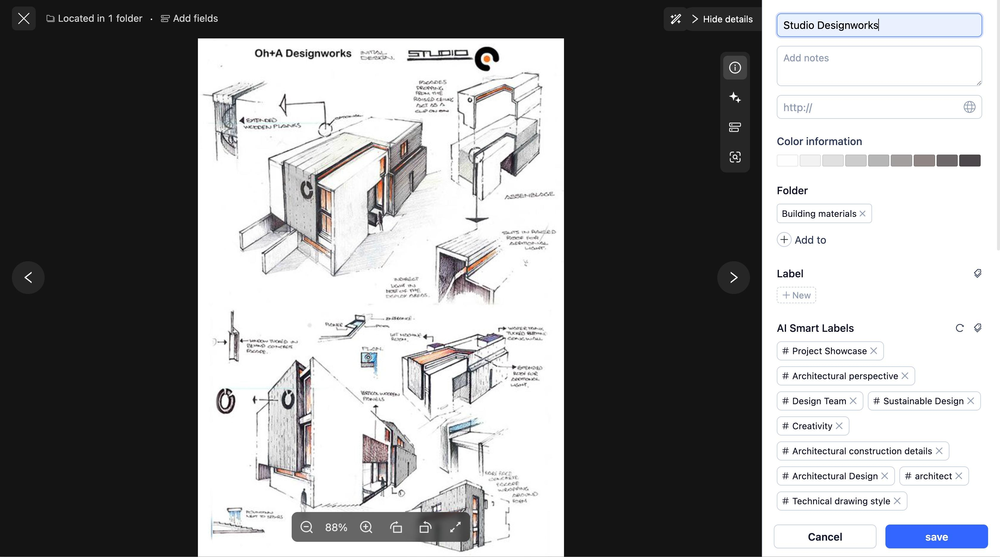
The Asset Details editing panel is built directly into the asset preview interface — so you can update an asset's information without ever leaving the preview page. Editable fields include name, notes, source URL, folder location, tags, AI-generated tags, and metadata fields such as status and usage rights.
— After uploading new assets, fill in names, notes, tags, and other archiving details all in one place
Refining tags — Build on AI-generated tags by manually adding or removing tags to ensure accurate categorization
Updating asset status — Move an asset from In Progress to In Review or Completed to keep your team aligned on where things stand
Recording asset provenance — Log the original source URL for copyright tracking and future reference
Before you begin
Availability: All plans
Permissions required: Folder owner or member with edit permission
🚀 Quick Start
Click any asset in your library to open the preview
If the details panel isn't already open, click the Expand Details button in the top-right corner
Click any field in the right-hand panel to edit it directly
Use the icon panel on the left side to switch between Basic Info and Metadata Fields
Click Save when you're done
✨ Expected result: Your changes take effect immediately. Updated asset information is reflected across the library view and search results.
📋 Step-by-Step Guide
The Details Panel at a Glance
The right-hand panel in the asset preview page has two main editing sections, toggled via the icon bar on the left:
ℹ️ Basic Asset Info — Name, notes, source URL, color information, folder location, tags, and AI-generated tags
🗂️ Metadata Fields — Status and usage rights
Editing Basic Information
✏️ Name Click the name field at the top to rename the asset. The updated name will sync across all library views automatically.
📝 Notes Use the notes field to add context — shooting background, intended use cases, design rationale, and so on. Notes are searchable, making them a valuable tool for locating assets quickly.
🔗 Source URL Enter the original source URL (starting with http://) to log where the asset came from — whether that's a stock platform, a brand website, or a copyright page — for easy reference and rights tracking later.
🎨 Color Information Displays the dominant color palette automatically extracted from the asset, helping your team filter by color and manage visual consistency across projects.
📂 Folder Location Shows which folder the asset currently lives in. Click + Add to to assign the asset to additional folders, enabling cross-folder referencing without duplicating files.
🏷️ Tags Add or remove tags manually. Click + Add to select tags from your tag library. A single asset can carry multiple tags.
🤖 AI-Generated Tags These tags are automatically generated by MuseDAM based on the asset's content. Click the × next to any tag to remove inaccurate suggestions, or click the refresh icon to re-run the AI analysis and generate a fresh set of tags.
💡 Best practice: Keep the AI tags that are accurate, and manually add any business-specific tags the AI might miss — such as brand names or project identifiers. Combining both gives you the broadest possible search coverage.
Editing Metadata Fields
Click the Metadata Fields icon in the left icon bar to switch to the extended attributes panel.
📌 Status
Tracks which stage of your workflow an asset is currently in. There are 6 preset options:
Status
Meaning
⏳ Not Started
Asset hasn't entered the workflow yet
🧑💻 In Progress
Asset is actively being created or edited
👀 In Review
Asset has been submitted and is awaiting approval
✅ Completed
Asset has been approved and is ready to use
❌ Not Approved
Asset did not pass review and needs revisions
🗃️ Archived
Asset has been archived and is no longer in active use
⚖️ Usage Rights
Indicates the copyright and licensing status of the asset. There are 4 preset options:
Usage Rights
Meaning
✍️ Attribution Required
Original creator must be credited when used
👍 Approved for Use
Full usage rights have been obtained
❌ No Usage Rights
Not licensed — commercial use is not permitted
🚫 Expired
License has lapsed and needs to be renewed
Saving and Discarding Changes
Click Save at the bottom of the panel to apply all changes
Click Cancel to discard your edits and revert to the last saved state
If you navigate to another asset using the arrows at the bottom without saving, any unsaved changes will be lost — make sure to save before moving on
❓ Frequently Asked Questions
Q: Can I edit the AI-generated tags?
Yes. Click the × next to any AI tag to remove it, or use the refresh icon to trigger a new round of AI analysis. AI tags and manual tags are stored independently and don't affect each other.
Q: Can I customize the options for the Status and Usage Rights fields?
The available options for both fields are system presets and cannot be modified at this time.
Q: If I switch to another asset without saving, will my changes be lost?
Yes — always click Save before navigating away. Any unsaved changes on the current asset will be discarded when you switch.