📤 Sharing Assets and Folders | Help Center | MuseDAM
📤 Sharing Assets and Folders
Written by MuseDAMUpdated on April 26, 2026
🎯 Overview
MuseDAM's sharing feature gives you a secure, flexible way to share assets and folders with team members, partners, and external stakeholders. Fine-grained permission controls and access management keep your content protected while making collaboration faster and easier.
Common use cases
Creative teams presenting design concepts to clients
Brand teams sharing marketing assets with agencies
E-commerce teams distributing product images to suppliers
Cross-department project collaboration
Publishing brand asset packages for external use
Before you begin
Availability: All plans
Permissions required: Edit permission or above on the asset or folder being shared
🚀 Quick Start
Select your content — Choose the assets or folders you want to share
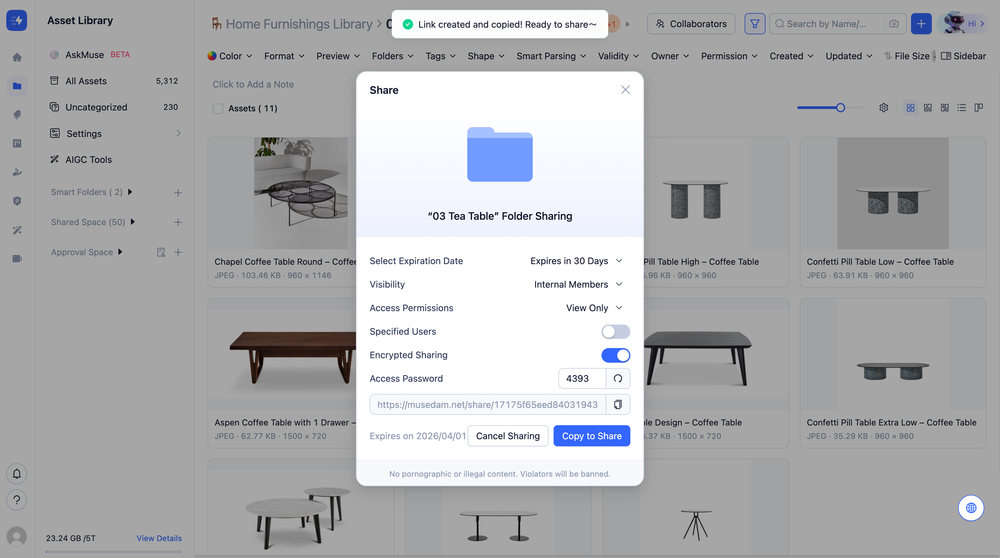
Open sharing settings — Click the Share button to open the sharing panel
Generate your link — Configure your permissions and click Create Share Link
✨ Expected result: You'll get a secure, shareable link. Recipients can access the content according to the permissions you've set.
📋 Step-by-Step Guide
Basic Sharing Settings
Starting a share
Select one or more assets or folders
Click the Share button in the toolbar
Setting an expiry date
Use the Select Validity Period dropdown to choose how long the link stays active:
Option
Best For
7 days
Short-term project collaboration
30 days
Medium-length projects or client presentations
No expiry
Long-term resource libraries or permanent brand asset packages
Configuring the sharing scope
Option
Description
Team members only
Access is restricted to registered members of your workspace
Anyone with the link
Any internet user who has the link can access the content
Setting access permissions
Permission
What recipients can do
View only
Online preview only — downloading is not permitted
Download
Recipients can download the original files
Save to library
Recipients can save assets to their own asset library
Download & save
Recipients can both download and save to their library
Password-protecting your share
Toggle on Encrypted Sharing
Enter a 3-digit numeric password in the Access Password field, or use the auto-generate option
💡 Tip: We recommend enabling password protection for any sensitive or confidential content.
Enterprise Sharing Settings (MuseDAM Enterprise)
Extended sharing scope options
Option
Description
Team members only
Restricted to registered workspace members
Corporate whitelist
Limits access to users with a specified company email domain
Anyone with the link
Any internet user with the link can access the content
Sharing with specific users
Toggle on Specified Users
Enter a user's email address or company domain in the search field
MuseDAM will automatically match and display available users
Select the target users to complete a targeted share
Asset attachment settings
Option
Description
Hidden
Recipients cannot see attachment information
Visible only
Recipients can view attachments but cannot download them
Downloadable
Recipients can download all attachments
Comment and annotation settings
Option
Description
Hidden
All comments and annotations are hidden from recipients
Visible only
Recipients can view comments and annotations but cannot export them
Downloadable
Recipients can export comments and annotations
Best practices for advanced sharing
External shares — Hide internal comments and annotations to keep your internal feedback private
Team shares — Enable full attachment and comment visibility to support open collaboration
Client presentations — Share only final, approved assets to keep the experience clean and professional
❓ Frequently Asked Questions
Q: My share link has expired — how do I fix it?
Check the expiry setting on the original share. You can regenerate the link or extend the validity period from your sharing history.
Q: A recipient can't access the shared content — what should I check?
Review your sharing scope settings. If you've enabled a corporate whitelist, make sure the recipient's email domain is included on the approved list.
Q: How do I revoke access to a shared link?
Find the relevant share in your sharing history and click Stop Sharing. Access is revoked immediately.
Q: If I update the contents of a shared folder, will recipients see the changes?
Yes. Folder shares are live — recipients will always see the most up-to-date contents of the folder, as long as the link is still within its validity period.