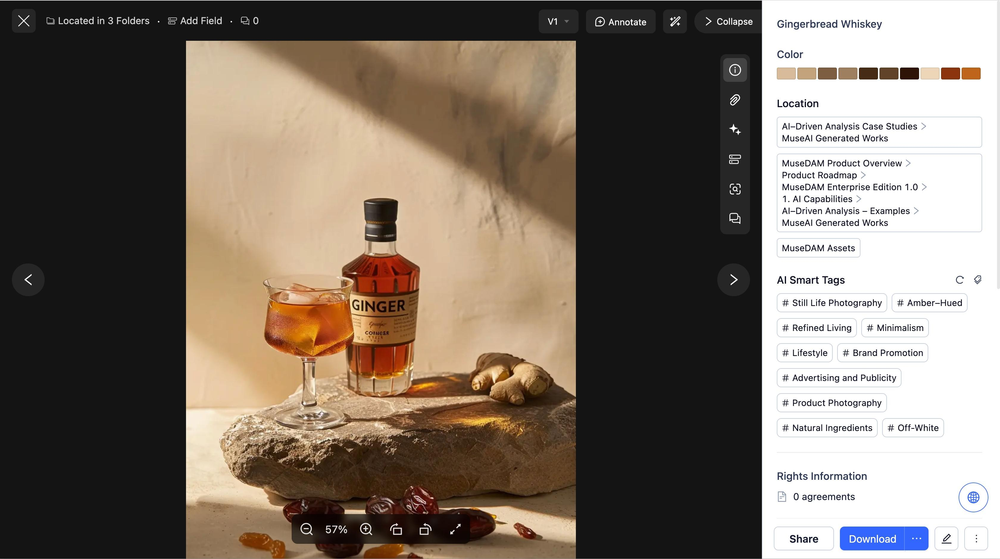
AI Smart Tags is a core AI capability within MuseDAM. Upon uploading an asset, the system automatically analyzes the image content and generates a set of descriptive tags based on dimensions such as color, style, scene, mood, and object category. These tags are directly attached to the asset details page and are instantly available for global search, helping your team locate exactly what they need in seconds. You can manually add or remove tags, or trigger a refresh at any time.
Automatically generate style, color, and scene tags for large batches of photography, allowing team members to effortlessly filter for the right collateral.
Maintain consistency and standardization in your asset library by automatically labeling brand visuals with material, style, and vibe metadata.
Empower cross-functional teams to quickly pinpoint necessary assets through automated identification of product types, scenes, and styles.
Prerequisites
Applicable Version: All MuseDAM plans
Permissions: Members with editing rights can manage and refresh AI Smart Tags.
System Requirement: Assets must be uploaded to the library for the system to automatically complete the initial tag generation.
⚡ Quick Start
Upload your assets to the library; the system will automatically trigger the AI tag generation upon completion.
Navigate to the asset details page and locate the AI Smart Tags panel on the right side to view your generated tags.
Manually delete any inaccurate tags as needed, or click + Add to supplement with your own custom tags.
Once saved, your tags are instantly active and ready to be used in global search.
📋 Detailed Operation Guide
1)Viewing AI Smart Tags
Click on any asset in the library to open its detail preview page.
Find the AI Smart Tags module in the right-hand information panel to review the auto-generated tags.
The generated tags cover multiple identification dimensions, such as:
Object Tags: Identifies specific items in the image (e.g., "lipstick", "perfume").
Color Tags: Extracts prominent color information (e.g., "gold", "black").
Style Tags: Recognizes the visual aesthetic (e.g., "luxury", "minimalist").
Scene Tags: Describes the setting of the shot (e.g., "product display", "indoor").
2)Managing Smart Tags
Tags can be easily added or removed at any time while editing an asset:
Deleting Tags: Click the edit icon in the top right corner of the panel to enter edit mode. An "×" button will appear next to each tag; simply click it to remove any inaccurate labels.
Adding Custom Tags: Click + Add in the tags area, type in your custom tag, and confirm. Manually added tags are displayed alongside AI-generated ones and are fully searchable.
Saving Changes: Click Save to apply your adjustments, or Cancel to discard the current edits.
3)Refreshing AI Tags
If you are not completely satisfied with the initial results, you can ask the AI to generate them again:
In the AI Smart Tags area on the asset details page, click the Refresh icon (the circular arrow) on the right.
The system will re-analyze the asset content and update the tags, replacing the previous set with the new results.
⚠️ Note: Once a custom parsing task is triggered, it cannot be paused. Please ensure your prompts are accurate before submitting. Each custom parsing action consumes 2 AI points.
❓ FAQ Common Issues & Troubleshooting
Q: What should I do if AI tag recognition is inaccurate?
A: You can simply delete the inaccurate tags and use the "+ Add" option to manually input the correct ones. If you want to systematically improve tagging accuracy based on your company's specific taxonomy, you can enable the "AI Auto-Tagging Engine" for targeted matching.
Q: Why don't some images generate smart tags?
A: Potential reasons include: the asset's resolution is too low, the visual content is too abstract, or the AI parsing is still processing. You can wait a moment and refresh the page, or manually click the refresh icon to trigger the process again.
Q: What is the difference between AI Smart Tags and the tags in the "Tag Management System"?
A: AI Smart Tags are general, descriptive terms automatically generated by the system based on image content, independent of any preset taxonomy. In contrast, the "Tag Management System" houses business-specific classification tags created manually by your enterprise. Both systems complement each other and can be displayed together on the asset details page.Performance Optimization Recommendations