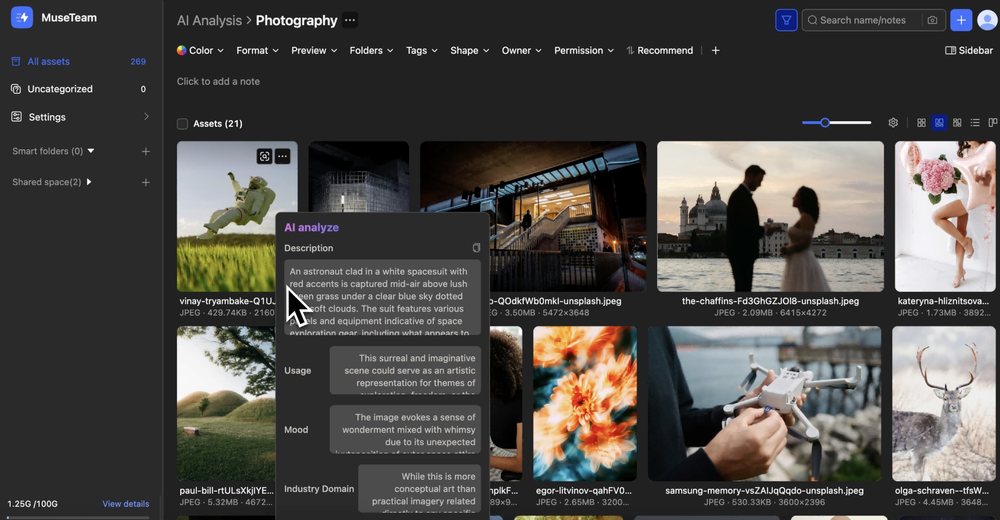
AI Smart Analysis automatically evaluates your digital assets, extracting multi-dimensional metadata such as visual descriptions, color schemes, emotional moods, and industry domains. By attaching these deep insights directly to your assets, it significantly boosts searchability. Whether you're using semantic search or advanced filtering, your assets are easier to pinpoint than ever.
Not completely satisfied with the default results? You can easily re-trigger the analysis using custom prompts to extract highly specific information tailored to your exact needs.
Common Use Cases
Marketing Asset Management: Automatically identify product types, scenes, and visual styles to quickly locate the perfect campaign collateral.
Brand Asset Organization: Intelligently extract and structure key brand elements like color palettes and emotional tones.
Creative Inspiration Search: Search by mood, vibe, or visual aesthetic to instantly find creative references.
Team Collaboration: Help team members grasp asset context at a glance, streamlining communication and workflows.
Prerequisites
Applicable Version: All MuseDAM plans.
Permissions: Members with editing rights can manually trigger AI Smart Analysis.
System Requirement: Assets must be uploaded to the library (the system automatically runs the initial analysis upon upload).
🚀 Quick Start
Upload your assets to the library. The system will automatically trigger the initial AI Smart Analysis once the upload is complete.
Open the asset details page and check the right-hand panel to view the generated insights (e.g., visual description, color scheme, mood).
Re-analyze if needed. Not quite what you wanted? Right-click the asset and select AI Assistant > AI Smart Analysis to trigger a new run.
Customize your analysis by entering custom prompts. Wait a moment for the process to finish, and the right-hand panel will update with your newly tailored insights.
📋 Detailed Operation Guide
1)Viewing Auto-Analysis Results
Once an asset is uploaded, the system performs the AI Smart Analysis automatically—no manual intervention required:
Click on any asset in the library to open its detailed preview page.
Click the AI Smart Analysis icon (the star icon) in the right-hand toolbar. The panel will display the current insights, including visual description, suggested usage, mood/vibe, and industry domain.
2)Manually Triggering a Re-Analysis
If the default results don't quite hit the mark, you can manually run the analysis again:
Right-click the target asset in the library to open the context menu.
Select AI Assistant > AI Smart Analysis.
In the pop-up dialog, choose your preferred analysis method:
Custom Smart Analysis (Recommended): Enter custom prompts to targetedly analyze and extract specific information from the asset.
System Smart Analysis: The system automatically selects analysis dimensions based on the asset type to analyze the content.
Click Confirm to start the process.
3)Using Custom Prompts
When you select "Custom Smart Analysis", you'll be prompted to provide specific instructions:
In the text box, describe exactly what you want the AI to extract or analyze. Examples include:
Visual descriptions, object recognition, or color schemes.
Text extraction (OCR) or style descriptions.
Specific brand elements and product details present in the image.
Quick Assist Tools:
Common Prompts: Select from a list of pre-configured, highly effective prompts to quickly fill the text box.
Random Fill: Generate a random prompt to use as inspiration or a starting point.
Once you're happy with your prompt, click Confirm.
⚠️ Note: Once triggered, an analysis task cannot be paused. Please double-check your prompts before submitting. Each custom analysis consumes 2 AI points.
4)Viewing Updated Results
Once the task is complete, click the AI Smart Analysis icon (star) in the right-hand panel of the asset details page to view your fresh insights.
This newly updated metadata is instantly available for semantic retrieval via AI Smart Search.
5)Editing Analysis Results
You can manually tweak, add to, or correct the AI-generated results to better fit your needs:
In the AI Smart Analysis panel, click the edit icon.
The text areas will become editable, allowing you to directly modify, supplement, or delete content.
Click Save to apply your changes, or Cancel to discard them.
💡 Pro Tip: Manually refining the results to match your company's specific business terminology significantly boosts the accuracy of future AI Smart Searches for that asset!
❓FAQ Common Issues
Q: What if there are no auto-analysis results after uploading?
A: The initial auto-analysis usually completes within a few seconds to a couple of minutes after upload. Larger files naturally require more processing time.
Q: What is the difference between Custom Analysis and System Analysis?
A: System Analysis automatically selects dimensions based on the asset type, making it ideal for bulk processing without specific requirements. Custom Analysis allows you to direct the AI via prompts, which is perfect when you need targeted information (like text extraction or specific object identification), yielding highly tailored results.
Q: Does every re-analysis consume AI points?
A: The initial auto-analysis triggered by the system is free of charge. However, manually triggered smart analyses consume 2 AI points per run.
Q: Can I trigger re-analysis for multiple assets in bulk?
A: Yes! Simply select multiple assets in the library, right-click, and choose AI Assistant > AI Smart Analysis to initiate a batch re-analysis task.