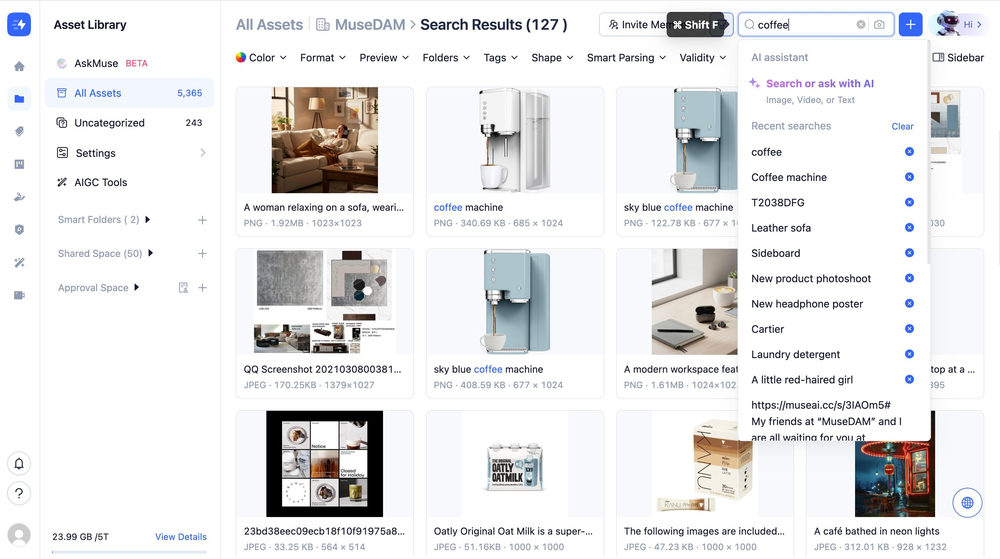
MuseDAM offers multiple intelligent ways to search for your assets. By leveraging AI Smart Analysis and Smart Tags, the system understands the deep semantic content of your files—meaning you can pinpoint the exact asset you need, even if the filename doesn't contain your search terms.
Whether you're doing an exact keyword lookup, stacking multiple filters, or describing a specific scene in natural language, finding your assets has never been faster or more precise.
✨ Three Ways to Search
Search Method
Best Used For
🔤 Keyword Search
You have a specific word or topic in mind and want to quickly locate assets containing matching content.
🎛️ Multi-Dimensional Filtering
You need to narrow down your library using specific criteria like colors, file formats, folders, or tags.
💬 AskMuse Conversational Search
You have a vague idea or scene in mind and want to describe what you need using natural language.
Why use AI Smart Search?
Campaigns: Instantly find campaign materials using keywords like "Black Friday" or "Sale," or simply tell AskMuse: "Show me marketing assets for last year's Black Friday detergent campaign."
Brand Consistency: Filter by brand colors (e.g., gold, off-white) combined with formats (e.g., HD PNG) to quickly pull print-ready collateral.
Product Launches: Use multi-dimensional filtering to locate specific collections under a designated product line, streamlining your go-to-market preparations.
Auditing: Combine tags, asset owners, and creation dates to locate a specific version of an asset or review materials created by a particular team member.
Prerequisites
Availability: All MuseDAM plans.
Permissions: Members will only see search results for assets they have the rights to access.
Optimization Requirement: For maximum search discoverability, ensure assets have completed the AI Smart Analysis and Smart Tagging processes.
🚀 Quick Start
⏱️ Estimated Time: Keyword search is instant; AskMuse conversational search typically returns results within seconds.
Quick Search: Click the top search bar (or use the shortcut ⌘ Shift F) and enter your keywords.
Filter: At the top of the search results page, use the dropdown filters to further narrow down your scope.
Ask AI: Got a complex or scene-based request? Switch to the AskMuse tab on the left menu and describe what you need in natural language.
📋 Step-by-Step Guide
1)Keyword Search
Click the search bar at the top right of the Asset Library, or hit the ⌘ Shift F shortcut.
Type your keywords (e.g., "coffee", "coffee machine", "new product photoshoot") and press Enter.
The system scans the entire library. Search hits will encompass:
File names and notes
AI-generated visual descriptions
AI Smart Tags
Below the search bar, you'll see your Recent Searches for quick reuse. You can clear this history at any time.
💡 Pro Tip: Even if your search term isn't in the filename, our AI Smart Analysis and Smart Tags ensure the system understands the visual content and surfaces the right assets.
2)Multi-Dimensional Advanced Filtering
Use the filter bar at the top of the Asset Library to mix and match the following criteria:
Filter Dimension
Description
Color
Filter by prominent colors associated with the asset.
Format
Filter by file type (e.g., JPEG, PNG, MP4, PDF, OBJ—supports 70+ formats).
Preview
Filter by visual display type (e.g., Black & White, Background).
Folders
Narrow your search to specific folders within the workspace.
Tags
Filter by your enterprise's custom taxonomy. Supports multi-tag combinations.
Shape
Filter by aspect ratio (e.g., Landscape, Portrait, Custom).
Smart Parsing
Filter by AI analysis status (Parsed / Unparsed).
Validity
Filter by asset expiration or validity status.
Owner
Filter by the asset's creator or designated owner.
Creation/Update Date
Filter assets within specific timeframes.
Granular Tagging Rules: Tag filters support advanced rules (Match Any / Match All) and hierarchical inclusion to meet your exact filtering needs.
Stackable: Multiple filters can be applied simultaneously to progressively drill down your search results.
Clearing Filters: Click the "×" next to an active filter to remove it, or click the funnel icon on the far left of the filter bar to clear everything at once.
3)AskMuse Conversational Search
AskMuse is MuseDAM's built-in AI search engine, perfect for vague, highly descriptive, or scene-based queries.
Click AskMuse at the top of the left-hand navigation menu.
Describe what you need using natural language in the chat box. For example:
"Help me find the marketing assets for last year's Black Friday detergent campaign."
"I need a neon-style image suitable for nighttime outdoor advertising."
AskMuse will scour the library and return a curated list of assets, complete with a brief explanation of why they match your prompt.
Click the jump icon in the top right of any asset card to view it directly in the library.
Keep the conversation going! You can ask follow-up questions to refine the results, or use @ to tag a specific asset and ask detailed questions about it.
💡 AskMuse supports 4 interaction styles: Conversational natural language search, Interactive AI Q&A, @ Tagging specific files for detailed queries, and Direct keyword search.
❓ FAQs & Troubleshooting
Q: I searched for a keyword clearly related to an asset's content, but it didn't show up. Why?
A: The asset likely hasn't completed its AI Smart Analysis yet, meaning the system hasn't indexed its semantic content. Try manually triggering the AI Smart Analysis for that asset; once complete, it will be fully searchable via keywords.
Q: Can I use multi-dimensional filters and keyword search at the same time?
A: Absolutely! After entering a keyword in the search bar, you can still apply filters (like Format, Color, or Date) at the top of the results page to drill down and pinpoint the exact file you need.
Q: What if the AskMuse search results aren't quite what I'm looking for?
A: Try providing more context in your prompt, such as a specific timeframe, intended use case, or distinct visual features, to help AskMuse better understand your needs. You can also send follow-up prompts in the chat to guide the AI toward better results.
Q: My search results are only showing a portion of the assets I expect. Is this a permission issue?
A: Yes. Search results strictly adhere to your user permissions. You will only see assets that you have the rights to access. Files in restricted folders will not appear in your results.