🤝 Inviting Members to Your Team | Help Center | MuseDAM
🤝 Inviting Members to Your Team
Written by MuseDAMUpdated on April 25, 2026
🎯 Overview
The Invite Members feature makes it easy for team admins to bring new people into a MuseDAM workspace. With flexible invite methods and configurable expiry settings, you can onboard teammates quickly while keeping access secure and under control.
Bulk invitations — Share an invite link or QR code with a group and let members join at their own convenience
Adding specific individuals — Add designated members directly using their phone number for precise roster control
Before you begin
Availability: MuseDAM Team and Enterprise plans
Permissions required: Admin
Prerequisites: A team workspace must already exist, and available seats must remain — if your workspace is full, expand your seat quota before inviting
🚀 Quick Start
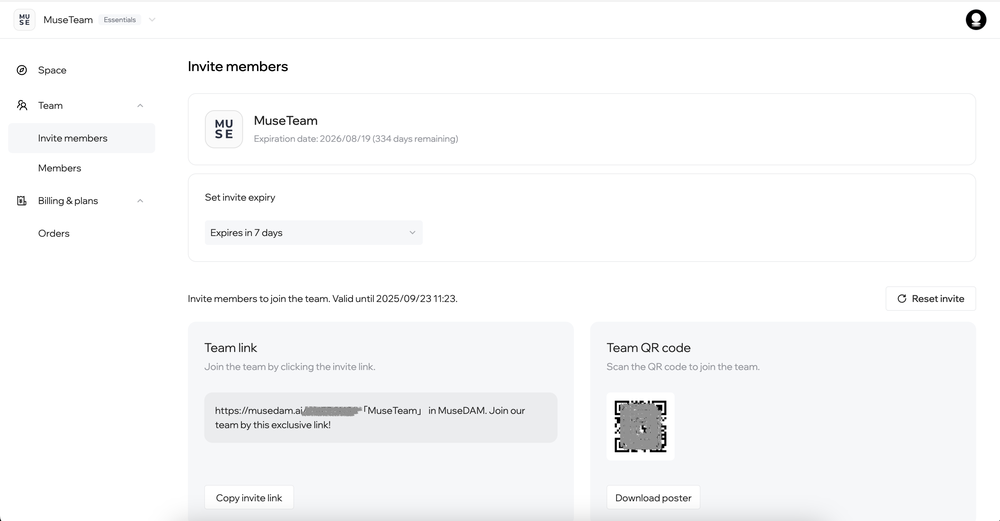
Click Admin Console in the left navigation → Team Management → Invite Members
Confirm that the Enable Invitations toggle in the top-right corner is turned on
Set the invite link expiry (3 days / 7 days / 30 days / No expiry)
Click Copy Invite Link to share it directly, or click Download Invite Poster to share a QR code
Members follow the link or scan the QR code to join the workspace
✨ Expected result: Members are automatically added to the team upon signing in via the link. You can confirm they've joined under Members & Departments.
📋 Step-by-Step Guide
Option 1 — Invite Link or QR Code
Best for bulk invitations or broadcasting to a group — members join at their own pace using a shared link.
How to set it up:
Go to Admin Console → Team Management → Invite Members
Confirm the Enable Invitations toggle is active (shown in blue)
Click the Set Invite Expiry dropdown and choose how long the link should remain valid: 3 days, 7 days, 30 days, or No expiry
Choose how to share the invite:
Copy Invite Link — Copy the link as text and paste it into WeChat, email, or any other channel
Download Invite Poster — Download a poster image with an embedded QR code that members can scan to join
If you need to invalidate the current link, click Reset Invite to generate a new one — the old link is deactivated immediately
⚠️ Security note: Once an invite link is shared publicly, anyone who has it can join your workspace. If you need tighter control over who joins, use Option 2: Add Specific Members instead — or remember to turn off the invite feature once you've finished onboarding.
Option 2 — Add Specific Members Directly
Best for situations where you need precise control over your member list. Admins can add individuals directly using their phone number — no action required from the member upfront.
How to set it up:
Go to Admin Console → Team Management → Members & Departments
Click the + Add Member button in the top-right corner
Fill in the following details in the Add Member dialog:
Name(required)
Mobile number(required) — The member will use this number to receive a verification code and sign in
Corporate email(optional) — This field is only available after a corporate email domain has been configured under Space Settings
Click Confirm to complete the addition
What happens next:
The member appears in the member list with a status of Pending Activation
Click the ··· menu next to their name to:
Copy their personal invite link — Send this to the member; clicking it activates their account and adds them to the workspace
Access other management options such as editing their details or removing them
💡 Note: Members added this way remain in Pending Activation status until they complete their first sign-in, either via their personal invite link or phone number verification.
❓ Frequently Asked Questions
Q: A member clicked the invite link but got a "Link Expired" message — what should I do?
The link has passed its expiry date. Go back to Invite Members, click Reset Invite to generate a fresh link, and resend it to the member.
Q: A member joined but isn't showing up in the member list — why?
They may not have completed account activation yet. Check Members & Departments for any accounts with a Pending Activation status. Members added via Option 2 won't appear as active until they've completed their first sign-in through their personal invite link.
Q: Our workspace is full and we can't invite anyone new — what are our options?
Click Expand Seats in the top-right corner of the Invite Members page, or go to Plan & Billing → Subscription Management to upgrade your seat quota. You can also free up seats by removing inactive members from Members & Departments.
Q: The corporate email field is greyed out — why can't I fill it in?
The corporate email field only becomes available after you've configured a corporate email domain under Admin Console → Space Settings.