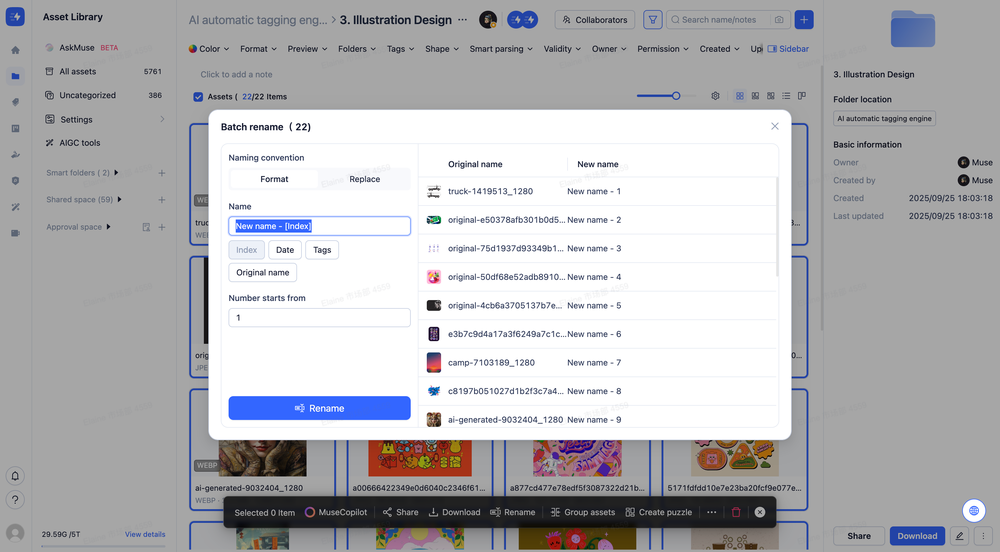
MuseDAM's Batch Rename feature lets you rename multiple assets at once using two flexible approaches:
Format mode — Build a custom naming template by combining a name prefix with variables such as sequence number, date, tag, or original file name to generate clean, standardized names in bulk
Replace mode — Find and replace specific words or characters across multiple asset names in one go — just like the find-and-replace function in a text editor
Before applying any changes, a live before/after preview on the right side of the dialog lets you verify exactly how each asset will be renamed — so you can rename with confidence.
Common use cases
Archiving photography — Rename large batches of randomly numbered image files into a consistent format like Product Name – 001 for clean, searchable archives
Standardizing naming conventions — Bring assets from different sources and teams into a unified naming format
Bulk text replacement — Replace outdated brand names or old project names across your entire asset library in seconds
Before you begin
Availability: All plans
Permissions required: Member with edit permission
Prerequisite: At least one asset must be selected
🚀 Quick Start
Select the assets you want to rename in your asset library
Click the Rename button in the bottom action bar to open the Batch Rename dialog
Choose your renaming method: Format or Replace
Configure your naming rules — the live preview on the right updates in real time
Once you're happy with the preview, click Rename to apply
✨ Expected result: All selected assets are renamed according to your configured rules, and the changes are reflected immediately across the library.
📋 Step-by-Step Guide
Step 1 — Select Your Assets
Before renaming, select the assets you want to work with:
Range select — Click the first asset, then hold Shift and click the last asset to select everything in between
Individual select — Hold Cmd (Mac) or Ctrl (Windows) and click assets one by one
Drag to select — Click and drag over an empty area to draw a selection box
Select all — Click the select-all checkbox in the top-left corner of the folder
Once assets are selected, the action toolbar appears at the bottom of the page showing "X items selected." Click Rename to open the Batch Rename dialog.
Format Mode — Custom Naming Templates
Building your template
Type a name prefix in the Name field, then click the variable buttons below to insert dynamic elements into your template:
Variable
Description
Example Output
Sequence
Auto-increments based on asset order
Product – 1, Product – 2
Date
Inserts the current date
Product – 20250315
Tag
Inserts the asset's first tag
Product – Footwear
Original Name
Preserves the original file name
Product – IMG_0032
💡 Example combination: Type Campaign_ in the name field, then click Date and Sequence. Your template becomes Campaign_[Date]-[Sequence], producing names like Campaign_20250315-1, Campaign_20250315-2, and so on.
Setting the starting number
Use the Start numbering from field to control where the sequence begins. The default is 1.
💡 When this comes in handy: If you're uploading a second batch of assets and the first batch already contains 20 files, set the starting number to 21 to keep your numbering continuous and consistent.
Replace Mode — Find and Replace Text
Replace mode is ideal for updating specific words or phrases across multiple asset names at once.
How to use it:
Enter the text you want to replace in the Find field (e.g. Black)
Enter the replacement text in the Replace with field — leave it empty to simply delete the matched text
The preview list on the right updates in real time to show which assets are affected and what their new names will be
Click Rename to apply the changes
⚠️ Note: The find-and-replace is case-sensitive. Make sure the text in the Find field exactly matches the characters in your asset names.
Live Preview
The right side of the Batch Rename dialog shows a running Original Name → New Name comparison that updates as you adjust your settings. Use this to review every affected asset before committing — it's your safety net before changes go live.
Assets with name changes display their new names clearly
In Replace mode, if an asset's name doesn't contain the search text, the new name will match the original — no change will be made
❓ Frequently Asked Questions
Q: Can I undo a batch rename after it's been applied?
Not at this time — batch renames can't be reversed with a single undo action. We strongly recommend reviewing the live preview carefully before clicking Rename to make sure everything looks right.
Q: What happens if I leave the "Replace with" field empty in Replace mode?
Leaving the field blank tells MuseDAM to delete every instance of the matched text from the selected asset names — effectively a bulk delete for that specific string.
Q: What if I use the Tag variable, but some of my assets don't have any tags?
If an asset has no tags, the tag variable will simply be left blank in the new name — no error will occur. That said, the resulting name may look incomplete. We recommend tagging your assets first before running a rename that includes the tag variable.
Q: Is there a limit to how many assets I can rename at once?
There's currently no hard cap on the number of assets you can rename in a single batch operation.