🖼️ Visual Similarity Search | Help Center | MuseDAM
🖼️ Visual Similarity Search
Written by MuseDAMUpdated on April 25, 2026
🎯 Overview
Visual Similarity Search is MuseDAM's image recognition-powered search capability. By analyzing the overall composition, color palette, and visual style of a reference image, it quickly surfaces duplicate or visually similar assets from across your library — no keywords needed.
Expanding on inspiration — Found an image you love? Use it to discover more assets in the same style from your library
Finding matching or near-matching product shots — Start with one product image and search for assets with the same or similar look
Visual benchmarking — Use a competitor image or external reference to find assets in your library that match a similar tone or aesthetic
Before you begin
Availability: All plans
Permissions required: Any member with asset view permission
📋 Step-by-Step Guide
1)Search for Similar Assets Within Your Library
This is the quickest way to trigger a similarity search during everyday browsing.
Hover over the target asset — a set of action icons will appear in the top-right corner of the thumbnail
Click the magnifying glass icon to reveal the Find Similar option
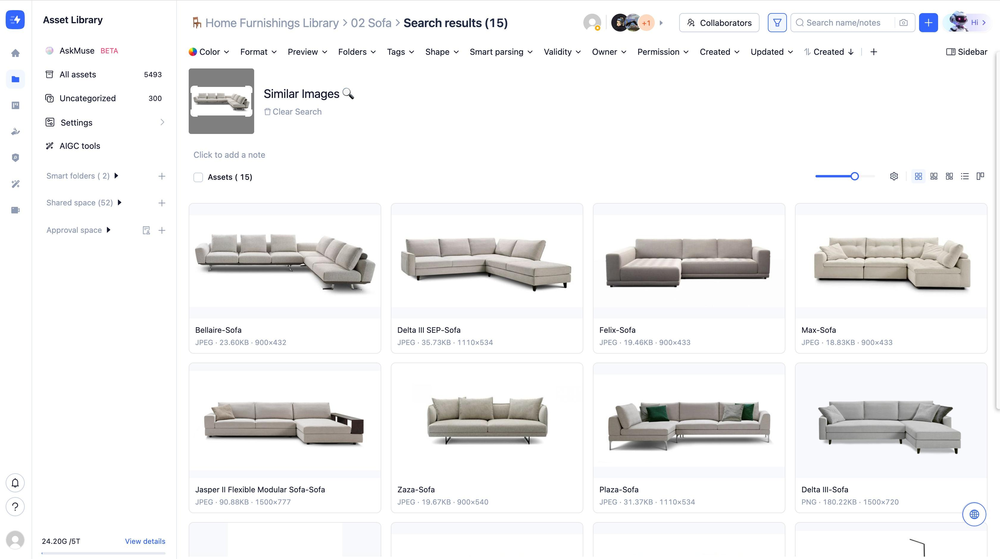
The page switches to the search results view, with the reference image thumbnail and a Similar Images 🔍 heading displayed in the top-left corner
The search scope defaults to the folder you're currently in. If you trigger the search from the All Assets view, the entire library is searched
2)Upload a Local Image to Search by Image
Perfect for when you want to use an external reference — such as a competitor image or inspiration from the web — to find visually similar assets in your library.
Click the camera icon to the right of the search bar in the top-right corner of the page
Select a local image file to upload in the dialog that appears
Once uploaded, MuseDAM automatically analyzes the image and returns visually similar assets from your current folder. If triggered from All Assets, the full library is searched
The uploaded image thumbnail is shown in the top-left corner of the results page so you can confirm the correct reference image was used
3)Draw a Region to Refine Your Search
Regardless of how you triggered the similarity search, you can draw a selection box over a specific area of the reference image to focus the search on just that portion of the frame.
After triggering a similarity search, locate the reference image thumbnail in the top-left corner of the results page
Click and drag over the reference image to draw a box around the area you want to focus on — for example, a specific color block, product detail, or design element
Release the mouse and MuseDAM will automatically re-run the search using the selected region as the new reference
The results list updates in real time to show the assets most visually similar to your selected area
💡 Pro tip: Region selection is especially useful when your reference image contains multiple elements. For example, if you have a wide-angle interior shot and you're only looking for assets that match a specific sofa, draw a box around the sofa to filter out everything else.
4)Clearing Your Search and Returning to Browse
Click the 🗑 Clear Search link below the reference image to exit similarity search mode and return to the standard asset browsing view
Alternatively, click All Assets or any folder in the left navigation panel to exit
❓ Frequently Asked Questions
Q: My search results contain a lot of irrelevant images — how can I improve them?
Try using the region selection tool to focus on the most visually distinctive part of your reference image — this typically makes a significant difference in result quality. You can also use the top filter bar (format, tags, folder, etc.) to narrow down the results further.
Q: How are search results ordered?
Results are sorted by visual similarity, highest to lowest — so the assets at the top of the list are the closest match to your reference image.
Q: Will a locally uploaded image be saved to my asset library?
No. Images uploaded for a similarity search are used purely to extract visual features for matching purposes and are not added to your library. If you'd like to save the image, please upload it through the standard upload flow.