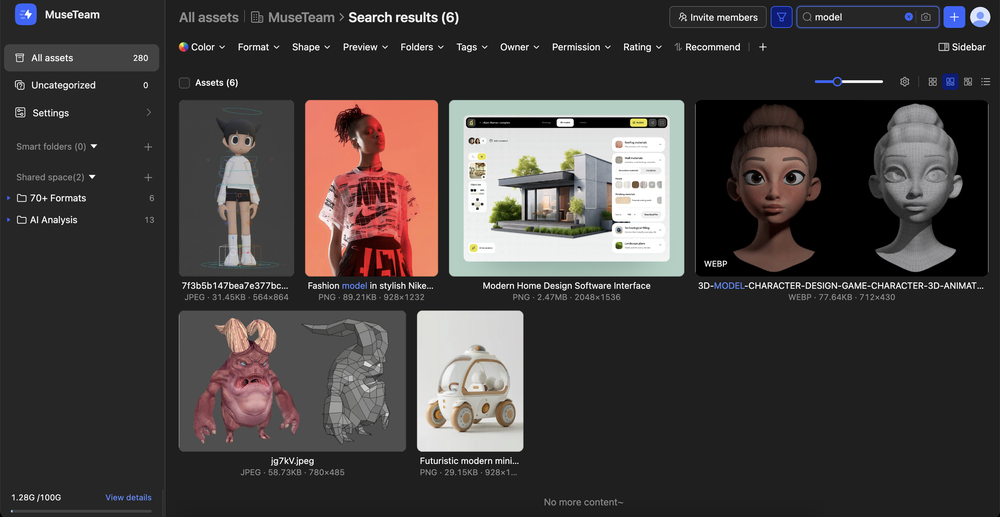
Keyword Search is the fastest way to find assets in MuseDAM. Type a keyword into the search bar and the system searches across four dimensions simultaneously — asset name, AI-parsed content, tags (both AI-generated and manual), and notes — returning every relevant asset in one unified results view.
Common use cases
Everyday asset discovery — Search by brand name, product name, or scene description to locate the right asset quickly
Finding assets by visual style — Use mood or aesthetic keywords like "minimalist", "premium", or "playful" to surface assets that match a specific visual tone
Searching within a project — Navigate into a specific folder first, then search to keep results scoped to that project and filter out noise
Locating assets by notes content — Search using project codes or campaign names recorded in asset notes to find related assets in seconds
Before you begin
Availability: All plans
Permissions required: Any member with asset view permission
🚀 Quick Start
⏱️ Results typically appear within 1–2 seconds of entering a keyword.
Click the Search name/notes field in the top-right corner of the page
Type your keyword (Chinese and English are both supported), then press Enter or wait for the search to trigger automatically
The page switches to the Search Results view, showing all matching assets and the total count
Use the filter bar at the top (color, format, tags, folder, etc.) to narrow down your results further
Click any asset to open the preview, or refine your keyword to adjust the results
📋 Step-by-Step Guide
1)Search Scope: Entire Library vs. Current Folder
MuseDAM automatically determines the search scope based on where you are in the interface:
Current Location
Search Scope
Best For
All Assets
Searches the entire asset library
When you're not sure which folder an asset lives in
Inside a folder
Searches only the current folder
When you know the project and want focused results
💡 Tip: If a search inside a folder returns fewer results than expected, click All Assets in the left navigation panel and search again to switch to a global scope.
2)Smarter Search Powered by AI Content Analysis
MuseDAM's keyword search goes beyond matching file names. It also searches the deep content analysis generated by MuseDAM's AI, which includes:
Visual description — What's depicted in the asset: people, settings, composition, color, and more
Intended use — Suggested use cases for the asset, such as promotional poster or social media graphic
Mood and atmosphere — The emotional tone conveyed, such as energetic, premium, or warm
Cultural characteristics — Cultural context or stylistic labels reflected in the asset
This means searching for descriptive phrases like "full of energy", "minimalist style", or "tech-forward" can surface relevant assets even when those words don't appear anywhere in the file name.
⚠️ Note: AI content matching only applies to assets that have already been processed by MuseDAM's AI analysis. Assets that haven't been analyzed yet can only be matched by file name, tags, and notes.
❓ Frequently Asked Questions
Q: My search returned zero results, but I know the asset exists in the library — what should I do?
Work through the following checks in order:
Check your search scope — If you're inside a folder, your search is limited to that folder. Switch to All Assets in the left navigation and search again
Check your spelling and try a broader keyword — for example, search "packaging" instead of "gift box packaging"
If you're using a descriptive keyword, check whether the target asset has been processed by AI analysis — unanalyzed assets won't match on content
Q: How are search results ordered?
Results are sorted by relevance by default. Use the sort button in the top-right corner to switch to other options such as Creation Date or Last Updated.