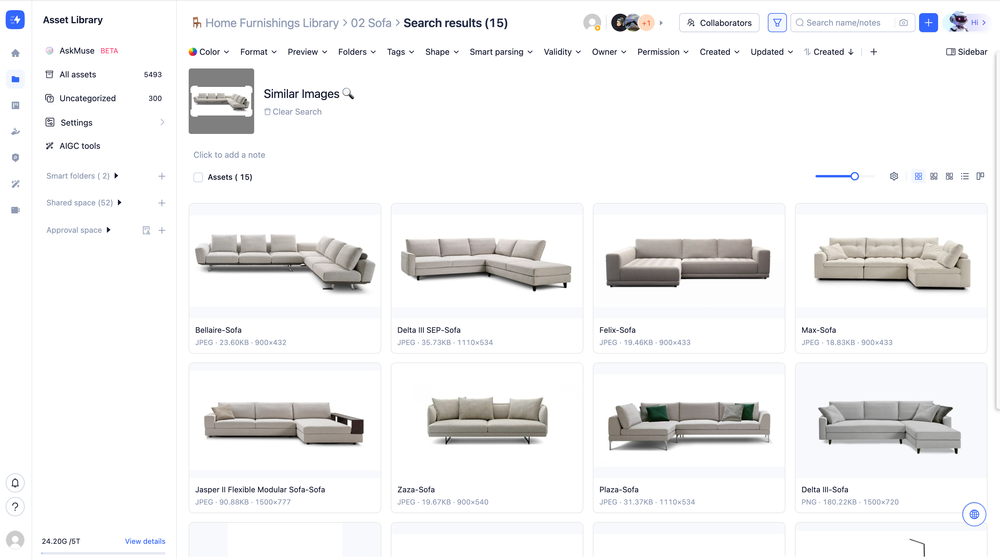
Similar Image Search allows you to quickly locate visually comparable assets in your library without typing a single keyword. By analyzing the overall visual characteristics of an image, the system surfaces matching files in seconds.
You can run a visual search using an asset already in your library, or upload a local file to perform a
. Need to get granular? You can even draw a bounding box around a specific detail in the image to pinpoint exact visual elements.
⚠️ How Matching Works: The system evaluates the entire image canvas (subject + background). If your reference image has a dominant or busy background, assets with similar backgrounds will rank higher. If you need to precisely match a main subject, we highly recommend using the bounding box tool to isolate it.
Why use Similar Image Search?
Creative Aggregation: Found a chair you love? One-click search to instantly pull all product shots with a similar style or vibe from your library.
Style Alignment: Use a high-quality campaign visual as a reference to discover historical assets with matching aesthetics for audits or re-use.
Competitor Benchmarking: Upload competitor or mood board references to quickly find your own product shots with similar compositions and color palettes.
Detail Matching: Isolate a specific UI element, pattern, or product detail to find matching component references across your entire asset pool.
Prerequisites
Availability: All MuseDAM plans.
Permissions: Members will only see search results for assets they have the rights to access.
🚀 Quick Start
Find Similar: Hover over an existing reference image in your library and click the Find Similar icon in the top right.
Or Upload: Click the camera icon in the search bar to upload a local image for a reverse search.
View Results: The system instantly returns a list of visually matching assets.
Refine: Drag the bounding box over the reference thumbnail to isolate a specific target area for hyper-precise matching.
📋 Step-by-Step Guide
1)Finding Similar Existing Assets
Hover your mouse over any asset card in the library and click the Find Similar (magnifying glass) icon that appears in the top right corner.
The system will automatically scan your current library scope and display visually similar assets.
A thumbnail of your reference image and a "Similar Images" label will appear at the top of the page.
Click Clear Search to exit the visual search and return to your normal browsing view.
💡 Pro Tip: Visual search results aren't set in stone! You can use the filter bar at the top of the page to further drill down your results by file format, color, or specific folders.
2)Reverse Image Search (Uploading a Local Image)
Have a reference image on your desktop that isn't in MuseDAM yet? Use Reverse Image Search:
Click the Camera icon located on the far right of the top search bar.
Select and upload your local reference image.
The system will analyze the uploaded image and retrieve matching assets from within your MuseDAM library.
3)Isolating Details with the Bounding Box
When your reference image contains multiple elements, or a busy background, you can crop the search focus:
Once a visual search is active, locate the reference thumbnail in the top left corner of the results page.
Click and drag the bounding box to highlight your desired area (e.g., framing just the sofa and ignoring the room behind it).
The system will instantly re-run the search based only on the visual features within your cropped area. You can resize or move the box at any time to dynamically update your results.
💡 Pro Tip: Using the bounding box is the absolute best way to guarantee accurate, subject-focused results when dealing with complex reference images.
❓ FAQs
Q: Why are my search results matching the background instead of the main subject?
A: Visual matching evaluates the entire image. If the background takes up a large portion of the frame, it carries more weight in the algorithm. To fix this, simply use the bounding box tool on the reference thumbnail to isolate the main subject and filter out background noise.
Q: Does the search scan my entire asset library or just the current folder?
A: It depends on where you trigger the search! If you click "Find Similar" from the "All Assets" view, it searches globally. If you trigger it while inside a specific folder, the results will be restricted to that folder.
Q: Does Similar Image Search support video assets?
A: Yes and no. If you click "Find Similar" on an existing asset in the library, the system will return both images and videos that visually match. However, the local upload feature (Reverse Image Search via the camera icon) currently only supports image files.
Q: My local image upload failed. What's wrong?
A: Please ensure that your uploaded image file does not exceed the 10MB size limit.