Embed components in your system
Use MuseDAM asset, folder, and member pickers and upload in your own system through an iframe, without signing in again.
Keep the API key on your backend. Each code is valid for 5 minutes and can be used only once.
Use cases
Your employees are already signed in to your own business system (OA, CMS, e-commerce back office, etc.) and need to use MuseDAM's asset picker, folder picker, member picker, upload, and tag picker directly inside it.
- Employees open components without signing in again. They are never redirected to the MuseDAM sign-in page, and no per-employee authorization is required.
- Team administrators decide whether embedding is available, and can enable, disable, or revoke it at any time.
- Credentials can only represent active members of your own team. Operations inside components follow that member's MuseDAM permissions.
This document covers embedding MuseDAM components in your system. To run your app inside MuseDAM instead, see Embedded apps & UI.
Integration flow
- A team administrator enables component embedding for a team API key and configures the allowed embedding domains.
- When an employee triggers an action in your system, your backend uses that API key to call the issuing endpoint and obtain a one-time
codefor the employee. - Your frontend opens
https://{MuseDAM domain}/outer/embed?code=...in an iframe. - After authentication, the embedded page sends a
musedam-embed-readyevent to the parent page. - Your frontend sends an
actionwithpostMessageto open a component and receives the matchingaction_resultbydispatchId.
Your backend ──(Bearer team API key + employee identifier)──► POST /api/muse/embed-code ──► { code, expiresIn }│▼ pass the code to the frontendYour frontend ──► <iframe src="https://musedam.ai/outer/embed?code=...">◄── musedam-embed-ready──► action: assets-selector-modal-open◄── action_result: { success: true, data: { selectedAssets } }
Enable component embedding
Administrator setup
- A system administrator signs in to MuseDAM and opens Team settings → API accounts.
- Select a team API key. If you do not have one yet, create it as described in Quick start.
- In the API key details, turn on the Embedded components switch, enter the allowed embedding domains, and save.
- The API key list then shows an "Embedding enabled" badge.
Only team API keys can issue embed codes. Personal API keys and third-party app credentials are rejected. After the switch is turned off or the API key is revoked, no new
codecan be issued.
Allowed embedding domains
Allowed embedding domains restrict which parent pages may load the embedded page. Once configured, the embedded page becomes ready only when the parent page origin matches, and it only accepts messages from and sends messages to that origin.
| Rule | Description |
|---|---|
| Format | http(s)://host[:port]. Enter an origin only, without a path, for example https://oa.example.com |
| Wildcard | One subdomain level is supported, for example https://*.example.com |
| Limit | Up to 20 entries |
| Empty | Parent page origin is not restricted (not recommended in production) |
Issue an embed code
Call this endpoint from your backend, authenticated with a team API key that has embedding enabled. Issue a new code every time a component is opened.
Issue request
POST https://open.musedam.ai/api/muse/embed-codeAuthorization: Bearer your_api_keyContent-Type: application/json
The request body identifies the employee. Provide one of the three fields; if more than one is sent, the priority is userId > loginEmail > loginPhone.
| Field | Type | Required | Description |
|---|---|---|---|
| userId | string | No | MuseDAM user ID. Look it up with the Teams & members endpoints |
| loginEmail | string | No | Email the employee uses to sign in to MuseDAM |
| loginPhone | string | No | Mobile number the employee uses to sign in to MuseDAM |
Request example:
curl --location --request POST 'https://open.musedam.ai/api/muse/embed-code' \--header 'Authorization: Bearer your_api_key' \--header 'Content-Type: application/json' \--data-raw '{"loginEmail": "jane@example.com"}'
Issue response
{"code": "0","result": {"code": "c3f1a9...","expiresIn": 300,"userId": "1538720494056386560","orgId": "123"}}
| Field | Type | Description |
|---|---|---|
| result.code | string | One-time embed code used to build the embedded page URL |
| result.expiresIn | number | Lifetime in seconds. Default: 300 |
| result.userId | string | MuseDAM user ID the code represents |
| result.orgId | string | Team ID the code belongs to |
A
codeis valid for 5 minutes and can be used only once; it is invalidated immediately after exchange. Issue it when the component is opened. Do not cache or reuse it.
Issue failures
| code | Error | Description | Resolution |
|---|---|---|---|
| 50078 | EMBED_API_KEY_NOT_ALLOWED | Only team API keys can issue embed codes | Use a team API key, not a personal API key or app credential |
| 50079 | EMBED_NOT_ENABLED | Component embedding is not enabled for this API key | Ask an administrator to enable it in the API key details |
| 50080 | EMBED_MEMBER_NOT_FOUND | The user is not a valid member of this team | Valid members are normal, administrator, or pending-activation members who have not left the team; departed members cannot be used. The endpoint does not create accounts |
If the API key is invalid or revoked, handle it as an authentication error described in Error handling. Other related error codes:
| code | Error | When it occurs |
|---|---|---|
| 50081 | EMBED_CODE_INVALID | The embedded page exchanges a code that is invalid, expired, or already used; the embedded page sends musedam-embed-auth-failed |
| 50082 | EMBED_ORIGIN_INVALID | An administrator saves allowed embedding domains in an invalid format. It never occurs when issuing or embedding |
Load the embedded page
Append the issued code to the embedded page URL and open it in an iframe:
https://musedam.ai/outer/embed?code={code}&theme=light
| Parameter | Required | Description |
|---|---|---|
| code | Yes | One-time code returned by the issuing endpoint. Encode it with encodeURIComponent |
| theme | No | light or dark. Applies to this embed only and is not saved to user preferences |
The embedded page uses the same domain your team members use to sign in to MuseDAM: https://musedam.ai.
The embedded page itself is a transparent blank page that only hosts component dialogs. We recommend a full-screen iframe that your page hides or removes after the component returns a result. The code is removed from the embedded page URL after exchange.
Test page
During integration, use the embedded component test page: paste an issued code to load the embedded page, choose an action, edit its arguments, send it, and inspect lifecycle events and results.
- The test page is on the MuseDAM domain. After loading, the MuseDAM session in this browser switches to the user of the
code, so we recommend using a private window. - If the API key restricts allowed embedding domains, add
https://musedam.aias well, or authentication fails. - This page tests embedding MuseDAM components in your system. The component test page in Embedded apps & UI tests apps that run inside MuseDAM.
Lifecycle events
The embedded page sends the following events to the parent page with postMessage. Message structure: { source: 'musedam', type, timestamp, payload }.
| type | When | payload |
|---|---|---|
| musedam-embed-ready | Authentication and initialization are complete; you can send actions | {} |
| musedam-embed-auth-failed | The code is missing, invalid, expired, already used, or the parent page origin is not allowed | { message } |
| musedam-embed-auth-expired | The session expired during use | { code? } |
When you receive musedam-embed-auth-failed or musedam-embed-auth-expired, have your backend issue a new code and reload the iframe. The embedded page never redirects to a sign-in page.
Call components
After receiving musedam-embed-ready, send actions with iframe.contentWindow.postMessage.
Message format
Your page → embedded page (request)
{source: "musedam-app",target: "musedam",type: "action",timestamp: "2026-10-12T10:30:00.000Z",dispatchId: "dispatch_1728700000000_abc123", // unique ID used to match the resultaction: "assets-selector-modal-open",args: { /* component arguments */ }}
Embedded page → your page (result)
// Success{ type: "action_result", dispatchId, action, result: { success: true, data: { /* result */ } } }// Failure or cancellation{type: "action_result",dispatchId,action,result: {success: false,code: "cancelled" | "forbidden" | "malformed_request" | "internal_server_error",message: "..."}}
| result.code | Meaning |
|---|---|
| cancelled | The user cancelled or closed the component |
| malformed_request | Request arguments are missing or malformed |
| forbidden | The action is not allowed, or the user lacks permission for it |
| internal_server_error | Internal server error or another uncaught exception |
Available actions
| Component | action |
|---|---|
| Asset picker | assets-selector-modal-open / assets-selector-modal-close |
| Folder picker (multiple) | folder-selector-modal-open / folder-selector-modal-close |
| Folder picker (single) | single-folder-selector-modal-open / single-folder-selector-modal-close |
| Member picker | member-selector-modal-open / member-selector-modal-close |
| Upload | upload-files / sub-project-upload-complete |
| Tag picker | openTagSelecter / closeTagSelecter / removeTag |
Any other action returns result.code = "forbidden" immediately. Use the *-close actions to close an open component from your page. The embedded session is locked to the team of the code; users cannot switch teams inside components.
Asset picker
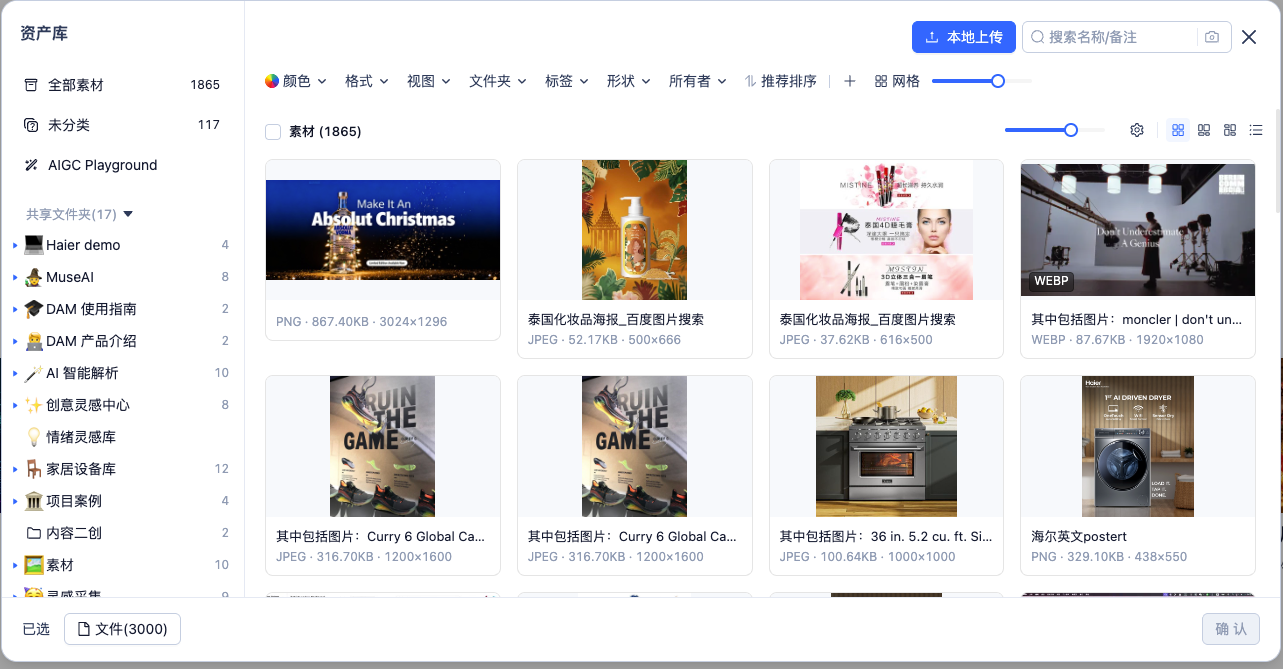
- action:
assets-selector-modal-open - args:
{initialSelectedAssetIds?: number[];// Selectable asset types. No restriction if omitted.// Values: image, video, audio, js, document, PDocument, excel, font, zip, dll, code, model, triD, urlallowedTypes?: string[];// Per-type limits. Omit limit for no limit on that type.dataLimit?: Array<{ type: string; limit?: number }>;// Filters applied on open. Users can still change them in the picker.filters?: {types?: string[];extensions?: string[];size?: { min?: number; max?: number; unit?: 'KB' | 'MB' | 'GB' };dimension?: { minWidth?: number; maxWidth?: number; minHeight?: number; maxHeight?: number };};}
- result.data:
{ selectedAssets: IAssetLite[] }.IAssetLiteincludesid,assetId,name,type,extension,size,width,height,downloadUrl,thumbnail,tags,folders, and more. See Embedded apps & UI for the full definition.
Links such as
downloadUrlmay expire. Store asset IDs in your system and request valid links through the Asset management endpoints when you need to display or download them.
Folder picker
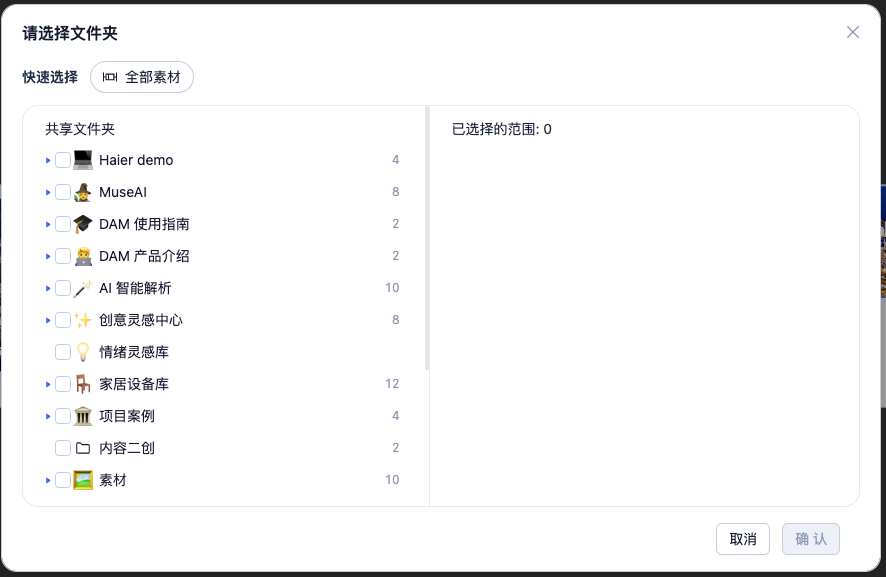
Multiple selection:
- action:
folder-selector-modal-open - args:
{ initialSelectedFolders?: Array<{ id: number; name: string }>; allMaterials?: boolean }.allMaterialscontrols whether the "All assets" shortcut is shown - result.data:
{ selectedFolders: Array<{ id: number; name: string }>; allMaterials: boolean }
Single selection:
- action:
single-folder-selector-modal-open - args:
{ initialSelectedFolder?: number | { id: number; name?: string } } - result.data:
{ id: number; name: string }
Member picker
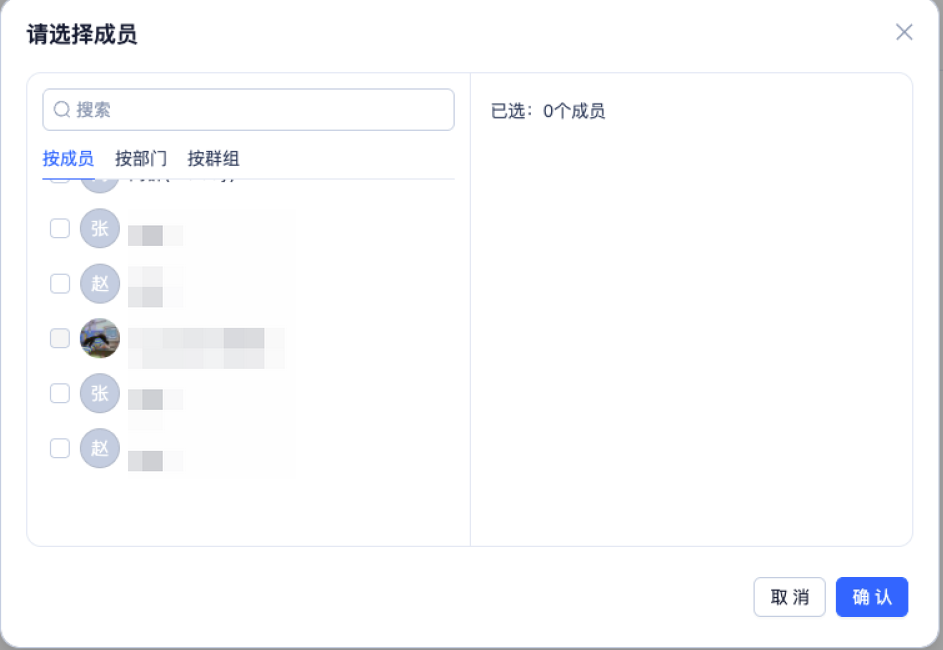
- action:
member-selector-modal-open - args:
{selectedItems?: {members?: Array<{ id: string; name: string }>;departments?: Array<{ id: string; name: string }>;groups?: Array<{ id: string; name: string }>;};}
- result.data:
{members: Array<{ id: string; name: string; departmentsName?: string; avatarUrl?: string }>;departments: Array<{ id: string; name: string }>;groups: Array<{ id: string; name: string }>;}
File upload
Upload takes two steps: upload files with upload-files, then call sub-project-upload-complete after your own processing to add them to MuseDAM.
Step 1: upload-files
// args{files: File[]; // Required. Obtain from <input type="file">folderId?: number; // Target folder ID; you can get it from the single folder pickeruploadSource?: string; // Upload source identifiersubProjectId?: string; // Recommended; distinguishes uploads from different features}// result.data{uploadedFiles: Array<{key: string; // Unique file key, required in step 2fileName: string;fileSize: number;fileType: string;uploadTime: string;url?: string;}>;failedFiles?: Array<{ fileName: string; error: string }>;}
Step 2: sub-project-upload-complete
// args{subProjectId: string; // Same as in step 1uploadKeys: Array<{ key: string; fileName: string; fileSize: number; fileType: string; uploadTime: string; url?: string }>;}// result.data{processedFiles: Array<{ key: string; fileName: string; status: 'success' | 'failed'; error?: string }>;}
If only some files fail, result.success is still true. Check failedFiles and each processedFiles[].status.
Tag picker
The tag picker opens as a popover at a given position, so you can apply MuseDAM tags to content in your page.
| action | args | Description |
|---|---|---|
| openTagSelecter | { rect: { left: number; top: number; width?: number; height?: number } } | Opens the tag popover next to rect (viewport coordinates) |
| closeTagSelecter | None | Closes the tag popover |
| removeTag | { tagId: number } | Removes one tag from the current selection |
The tag picker does not return action_result. Every time the user changes tags, the embedded page sends { source: 'musedam', type: 'action', action: 'updateTags', args: { tags } }. Use the tags from the latest message.
Complete example
Issue a code on the server
Node.js example. The API key is stored only in a server-side environment variable:
// POST /api/musedam/embed-code — your own backend endpoint; verify the signed-in userapp.post('/api/musedam/embed-code', requireLogin, async (req, res) => {const response = await fetch('https://open.musedam.ai/api/muse/embed-code', {method: 'POST',headers: {Authorization: `Bearer ${process.env.MUSEDAM_API_KEY}`,'Content-Type': 'application/json',},// Issue only for the signed-in employee; never trust an email sent by the frontendbody: JSON.stringify({ loginEmail: req.user.email }),})const body = await response.json()if (String(body.code) !== '0') {return res.status(400).json({ message: body.message })}res.json({ code: body.result.code })})
Open a component in the browser
// The MuseDAM domain your team signs in toconst MUSEDAM_ORIGIN = 'https://musedam.ai'async function openMuseDAM(action, args) {// 1. Get a new code from your backend every timeconst { code } = await fetch('/api/musedam/embed-code', { method: 'POST' }).then((r) => r.json())// 2. Create a full-screen iframeconst iframe = document.createElement('iframe')iframe.style.cssText = 'position:fixed;inset:0;width:100%;height:100%;border:0;z-index:9999'iframe.src = `${MUSEDAM_ORIGIN}/outer/embed?code=${encodeURIComponent(code)}&theme=light`document.body.appendChild(iframe)const dispatchId = `dispatch_${Date.now()}_${Math.random().toString(36).slice(2)}`return new Promise((resolve, reject) => {function cleanup() {window.removeEventListener('message', onMessage)iframe.remove()}function onMessage(event) {// 3. Only handle messages from the MuseDAM embedded pageif (event.origin !== MUSEDAM_ORIGIN || event.source !== iframe.contentWindow) returnconst data = event.data || {}switch (data.type) {case 'musedam-embed-ready':// 4. Send the action once initialization is completeiframe.contentWindow.postMessage({source: 'musedam-app',target: 'musedam',type: 'action',timestamp: new Date().toISOString(),dispatchId,action,args,},MUSEDAM_ORIGIN,)breakcase 'musedam-embed-auth-failed':case 'musedam-embed-auth-expired':cleanup()reject(new Error(data.payload?.message || data.type))breakcase 'action_result':// 5. Match the result by dispatchIdif (data.dispatchId !== dispatchId) returncleanup()data.result?.success? resolve(data.result.data): reject(Object.assign(new Error(data.result?.message), { code: data.result?.code }))break}}window.addEventListener('message', onMessage)})}// Usage: select up to 5 imagesopenMuseDAM('assets-selector-modal-open', { allowedTypes: ['image'], dataLimit: [{ type: 'image', limit: 5 }] }).then(({ selectedAssets }) => console.log('Selected', selectedAssets)).catch((error) => error.code !== 'cancelled' && console.error(error))
Security recommendations
- Keep the API key on your backend only. It must never appear in the iframe URL, frontend code, or browser storage.
- Your backend should issue a
codeonly for the currently signed-in employee. Take the employee identifier from your own session; never trust an email or phone number sent by the frontend. - A
codeis valid for 5 minutes and can be used only once. Do not write it to logs, analytics, or shared links. - Configure allowed embedding domains in production, listing only the origins of pages that host the iframe.
- Validate
event.originandevent.sourcewhen receiving messages, and specify the MuseDAM origin when sending them instead of'*'. - Once an employee leaves or is removed from the team, codes can no longer be issued or exchanged for them. Turn off the switch or revoke the API key when embedding is no longer needed.
FAQ
What should I do when I receive musedam-embed-auth-failed?
Check whether the code is older than 5 minutes, whether it was already used (for example, the same URL was reused after a page refresh), and whether the parent page origin is in the allowed embedding domains (including scheme and port).
Can I preload the iframe to open components faster?
Yes. Issue a code and load the iframe shortly before the user needs it, and show it after musedam-embed-ready. Remember that the code expires after 5 minutes and must be reissued.
Which assets and members are visible in components?
The same as when the employee signs in to MuseDAM directly, based on that employee's team member permissions. The embedded session is fixed to the team that issued the code.